If you've been putting off learning Canva because it sounds complicated, here's some good news: it's one of the most beginner-friendly tools on the internet, and you can create a professional-looking Instagram post in under ten minutes your very first time. Here's a straightforward walkthrough to get you started.
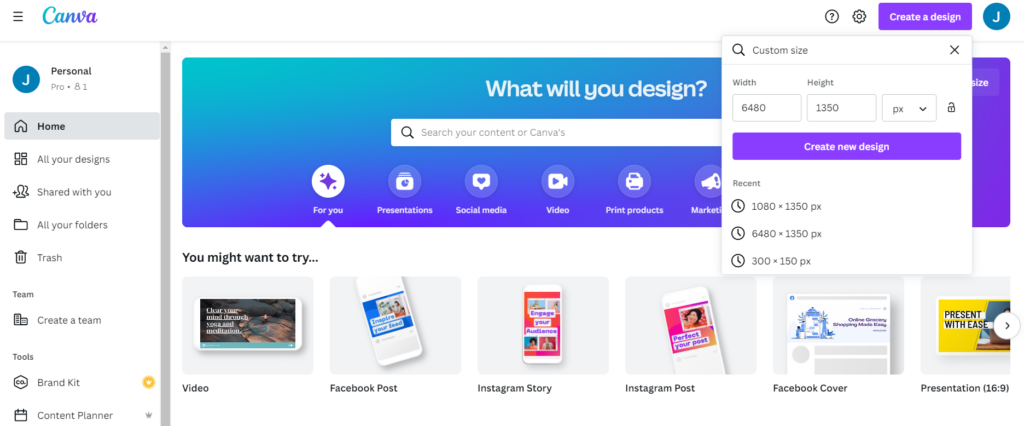
The first step is simply signing up. Head to canva.com and create a free account — you don't need a credit card, and the free plan has more than enough features to get going. Once you're inside, click the "Create a design" button and type "Instagram Post" into the search bar. Canva will immediately show you format options including feed posts, Stories, and Reels. For a standard feed post, select "Instagram Post (4:5)" — it's already perfectly sized to Instagram's specifications, so you won't need to worry about dimensions.
Next, browse the templates. This is where Canva really shines for beginners. On the left-hand sidebar, click "Templates" and you'll see thousands of pre-designed options organized by style, color, and theme. Click on one you like and it will instantly load onto your canvas. From here, every element is editable — just click on the text to change it, click on a color block to swap it, or click on a photo to replace it with your own image. Nothing is permanent until you download it, so feel free to experiment.
To upload your own photos, click "Uploads" in the left sidebar, then "Upload files" and choose images from your phone or computer. Drag and drop your uploaded photos to replace existing images in the template. If you want your logo on the post, you can upload it the same way and drag it anywhere on the design.
When you're happy with how everything looks, click the "Share" button in the top right corner, then "Download." Choose PNG format for the best quality — your Instagram-optimized post is ready to go, and the dimensions are already correct for uploading directly to your feed.
A few beginner tips worth knowing: stick to two fonts maximum for a clean look, use your brand colors consistently across every post, and avoid overcrowding the design with too many elements. Simplicity almost always performs better than busy.
One thing that trips up many beginners is spending too long designing from scratch each time. This is exactly why starting with professionally built templates — ones already designed with the right layout, spacing, and visual hierarchy — saves you enormous time and produces better results. Instead of figuring out design principles on the fly, you simply plug in your content and post.
👉Shop our template collections if you're serious, and level up your social media game today.